Location settings
Where to find business details, hours, booking page settings, and notification preferences for each location.
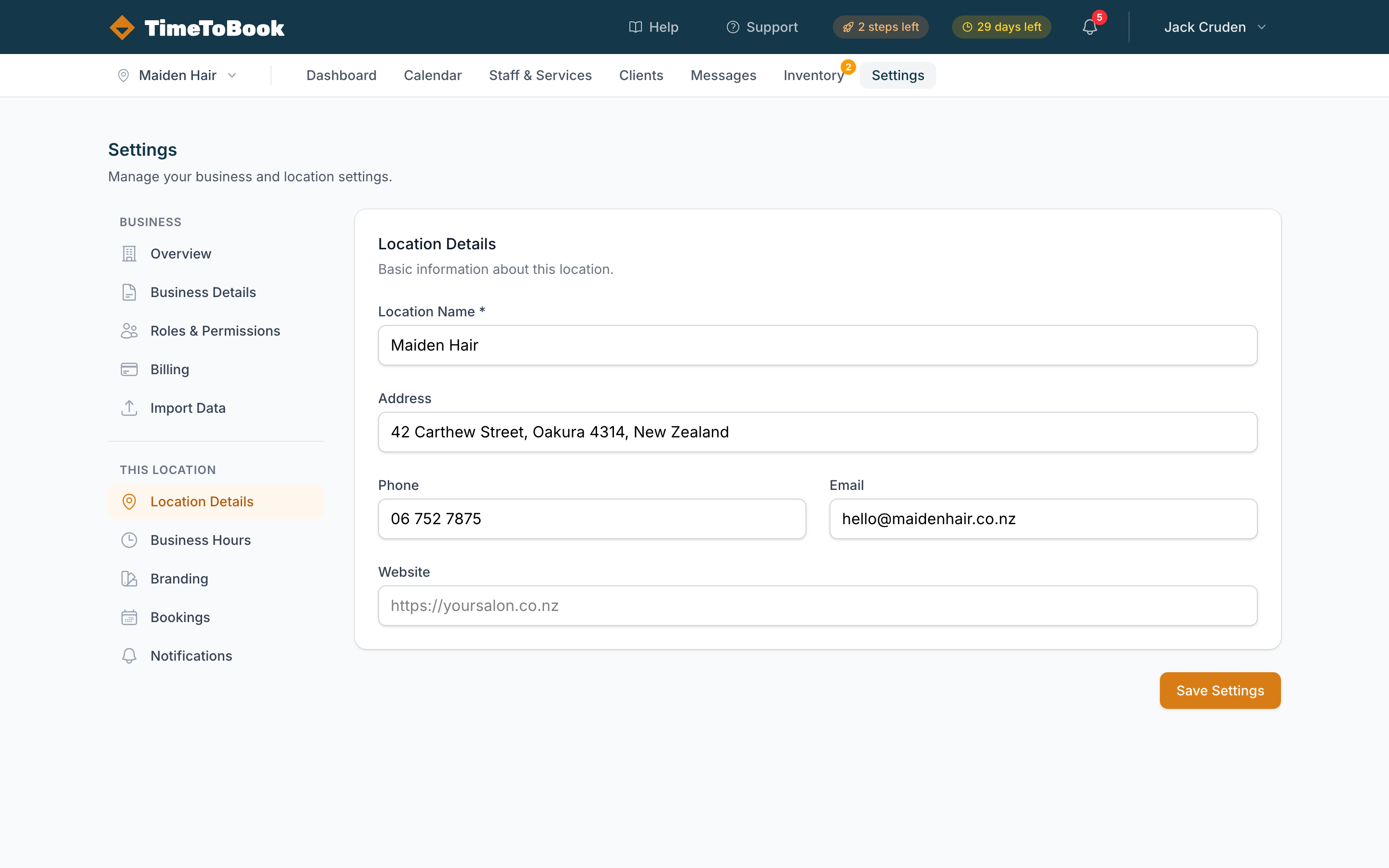
All location-specific configuration lives under Settings. The page is split into two groups in the left sidebar:
- Business: settings that apply to your whole business (all locations).
- This Location: settings for the current location only.
Business settings
These apply across every location you run (most users have just one).
- Overview: how your business is organised, with your plan, owner, staff and client counts, and your locations.
- Business details: Business Name, Region and Timezone. Your region sets your currency and can't be changed here; contact support if it's wrong.
- Roles and permissions: define what each role on your team can see and do.
- Billing: your plan, TimeToBook Plus, payment method, invoices, and SMS credit top-ups. See Billing, trials and plans.
- Payments: online deposits, part of Plus. See Online payments and deposits.
- Import data: bring in bookings from any system using a CSV file, or clients and client notes from Timely CSV exports. There's no services import, so add services yourself in Staff & services. See Importing bookings.
- Refer: your personal referral link, and the free Plus months you've earned from it. See Refer a salon.
Location settings
These apply to the current location only. Switch locations using the location switcher at the top of the left sidebar.
Location details
Location name, address, phone, email, and website. Your address appears on your booking page (see Address Visibility below) and in confirmation and reminder emails. Your phone number is used for the "call the salon" button clients see on their booking. Your email is where New Booking Alert emails go.
Business hours
Weekly opening hours. These are everyone's hours unless they've set their own in Staff & services, in which case their own hours apply, even outside these. When you save, you're asked whether to update anyone with their own hours too. See Which hours win. If you open on a two-week rota, tick Different hours every other week to set a Week A and a Week B that take turns.
Special hours (under Business hours) sets different hours for a range of dates, like opening earlier in the weeks before Christmas or closing over the holidays. Click Add special hours, pick the first and last date, set the hours for each weekday and save. Clients can book those times straight away, and your normal hours come back by themselves after the last date. Special hours apply to everyone in the team, so add time off for anyone who isn't working them. To undo, click Remove next to the dates.
To change the hours for a single day, click the hours on the Calendar: in day view they're in the top-left corner, in week view under each date. In week view, click Week hours in the top-left corner to set every day of that week at once. Choose Normal hours, Different hours or Closed. Days with special hours show their times in amber.
To change just one person's hours for a day (someone starting early, or a day off), open the Calendar in day view and click the hours under their name. Everyone else keeps their hours, and that person can be booked in their new hours even outside your opening hours. Staff can change their own hours this way. Changing someone else's needs permission to manage staff.
Booking page
Everything about your public booking page in one place. Click Save Settings at the bottom when you're done.
- Enable booking page: take the page offline temporarily if you need to. Your booking URL and a Preview link are shown here too.
- Booking page URL: change the end of your link (the part after
/book/), for example after renaming your business. Use letters, numbers and dashes, at least 3 characters. You'll see whether it's available as you type, then click Change URL and confirm (this saves straight away, separately from Save Settings). Your old link keeps sending clients to the new one, so shared links don't break, but update it where you can. - Branding: upload a logo (PNG, JPG or SVG, max 2MB) and pick a Primary Color for buttons and accents. If you upload a logo, it's shown at the top of your booking page in place of your location name.
- Booking page Notice: display a message at the top of your booking page (e.g. holiday closures or special offers). Leave empty to hide.
- Address Visibility: choose Full address, General area only (city and region), or Don't show an address. This only changes the booking page. Clients always get your full address in their confirmation.
- Booking Rules:
- Maximum days in advance: how far ahead clients can book.
- Minimum notice required: how soon before an appointment clients can book (e.g. at least 2 hours before).
- Same-day bookings: when this is off, clients can't book for today; the earliest day they can pick is tomorrow. To stop bookings only a few hours ahead while still allowing same-day ones, use Minimum notice required instead.
- Start times: how often clients can choose a start time: Every 15 minutes (the default), Every 30 minutes (on the hour and half hour), or On the hour (9:00, 10:00, 11:00). Each booking still takes its full service length, so this only changes which start times are offered. See How booking start times work.
- Cancellation notice: how far ahead clients can cancel online, or Disabled to stop online cancellations. See Client self-service cancellations.
Notifications
Changes here save automatically.
- New Booking Alert: an email to your location's email address each time a client books online. Off by default, and it needs an email in Location details. There's no SMS alert for new bookings.
- Booking Confirmation: sent to the client as soon as a booking is made, by Email (on by default) and SMS (off by default, needs credits).
- Reminders: sent to the client before the appointment. New locations start with one email reminder 1 day before. Click Add reminder to add another, choose a time from 1 hour to 1 week before, and tick Email, SMS or both. At the moment each booking gets one reminder: the earliest one still to come when the booking was made.
- Message Templates: write your own wording. See Customising confirmation and reminder messages.
Your own alerts as a team member (cancellations, upcoming appointments, SMS credits) are set per person in Account → Notifications.
Changing your timezone
Your business has one timezone, set under Business details. If the device you're using is set to a different timezone, TimeToBook shows a blue banner at the top of the app with an Update timezone button, because a 10am booking means something very different in London versus Auckland.
If the banner appears because you're travelling, you can ignore it. If your business timezone is wrong, change it in Settings → Business details.
More in Setup
Setting up services
Create the services you offer, group them into categories, set durations, processing and buffer time, and control who can perform them.
Managing staff
Add staff, set their working hours, give them a login, and archive staff when they leave.
Service assignments
The staff-versus-services grid: who can perform what, custom prices and durations per staff member, and price tiers.
Inviting your team to log in
How to send an invitation so a staff member can sign in to TimeToBook with their own login.
Roles and permissions
How owners, managers and staff differ — and how to build custom roles when the defaults don't fit.
Importing bookings from another system
Move your appointments from Timely, Fresha, Booksy or any other system into TimeToBook with the CSV import wizard, and bring clients across from Timely.
Switching from Fresha
A step-by-step plan for moving from Fresha to TimeToBook: what comes across, what you set up yourself, and how to switch your booking link over.
Managing multiple locations
Run more than one location from a single account — switch between them, share staff and clients, and keep settings separate.
Online payments and deposits
Take a deposit when clients book online, refund it automatically when they cancel in time, or the full price. Part of TimeToBook Plus.
Still stuck?
Our support team is ready to help.