Managing staff
Add staff, set their working hours, give them a login, and archive staff when they leave.
The Staff tab on the Staff & Services page is where you manage your team. Each staff member is listed with their working hours, price tier, and whether they're bookable or can log in.
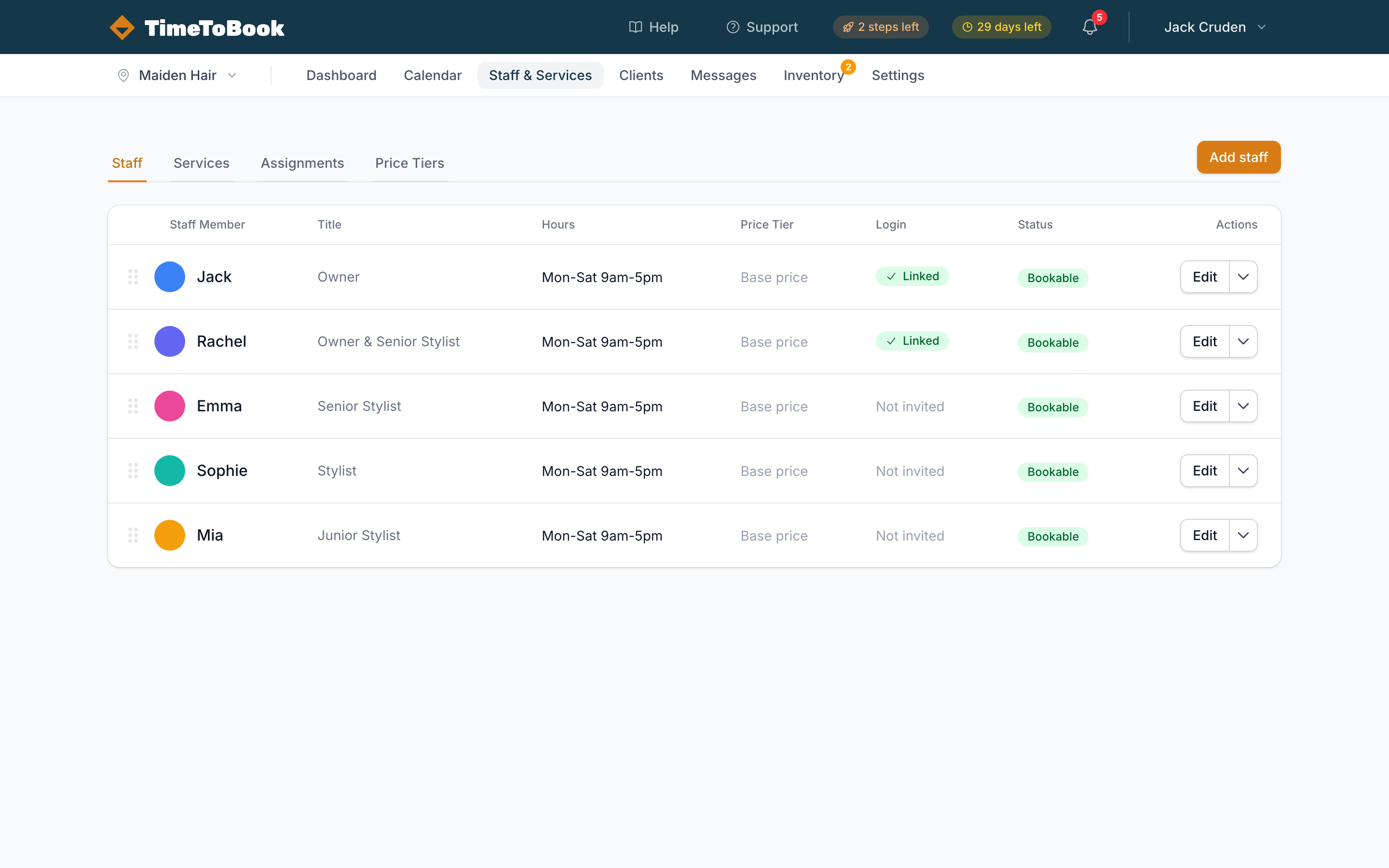
Adding a staff member
Click Add staff (top right) and fill in the Details tab:
- Name: how they appear on bookings and the public page.
- Title (optional): "Senior Stylist", "Colour Specialist", etc.
- Calendar Color: used to identify their bookings on the calendar.
- Price Tier: adjusts all service prices for this staff member. Leave it on Base price if they charge your standard prices.
- Bookable: leave on for anyone clients can book. Turn it off for front-of-house staff or anyone who shouldn't appear on the booking page.
Then set their hours on the Working Hours tab (see below) and click Add Staff.
There's no email field here. To let a staff member log in, invite them after adding them (see Logins).
Your first staff member is free. If you add a second one without a paid plan, you'll see an Upgrade to add more staff message with a link to billing. See Billing and trials.
Working hours
By default, a staff member uses your business hours from Settings → Business Hours. Their row shows "(inherited)" next to the hours.
To give someone their own hours, click Edit on their row, open the Working Hours tab, and tick Set custom hours. Then tick the days they work and choose a start and end time for each. Unticked days show as Day off. Untick Set custom hours to go back to your business hours.
Different hours every other week
If someone works a two-week rota (for example every second Saturday), tick Different hours every other week under their custom hours. You'll get two sets of days, Week A and Week B, which take turns one week each. Use This week is to say which of the two the current week is, then click Save. Online booking and the calendar follow the rota automatically.
The same option is on Settings → Business Hours if the whole business opens on a two-week rota. Staff using your business hours follow that rota too.
Each day has one start and one end time. There's no separate setting for breaks, split shifts, or one-off time off. Use calendar blocks instead:
- Lunch break or a gap in a split shift: create a block for that time and set it to repeat (e.g. Daily (weekdays only)).
- A day off or a holiday: create a block covering their day, repeating daily until they're back.
See Using the calendar for how to create blocks, including a recipe for holidays.
On days your business is open, online booking times are also kept within your business hours. So if a staff member's custom hours start before you open or finish after you close, clients will only see times while you're open.
Logins
Staff don't need a login to be bookable. To give someone access to the app, click the arrow next to Edit on their row and choose Invite to Login. Enter their Email Address, pick a Role, and click Send Invitation.
They'll get an email invitation. Their row shows Invited until they accept, then Can log in. If they lose the email, use Resend Invite from the same menu.
What they can see and do depends on their role. You can manage roles under Settings → Roles & Permissions.
Price tiers
If staff charge different rates, assign each a Price Tier (see Setting up services). The tier adjusts their price for every service in one go, rather than editing service by service.
Archiving a staff member
When someone leaves, don't delete them. Archive them instead, from the menu next to Edit on their row. This:
- Hides them from the public booking page and calendar.
- Keeps their booking history intact for reporting.
- Drops them from your billable staff count.
Archived staff appear under Archived Staff below the active list on the Staff tab. Click Restore if they ever come back.
Your first staff member is free, and every other staff member counts toward your bill, whether or not they're bookable. Only archived staff don't count. Archiving someone lowers your bill.
Going solo
Running by yourself? You don't need to do anything special. A single staff member (you) is always free. Just make sure your own name is in the Staff list and set to bookable so clients can book you.
Still stuck?
Our support team is ready to help.