Setting up services
Create the services you offer, group them into categories, set durations, processing and buffer time, and control who can perform them.
Services are the heart of your booking page. Each service has a name, a description, a duration, and a price, and that's what clients see when they book.
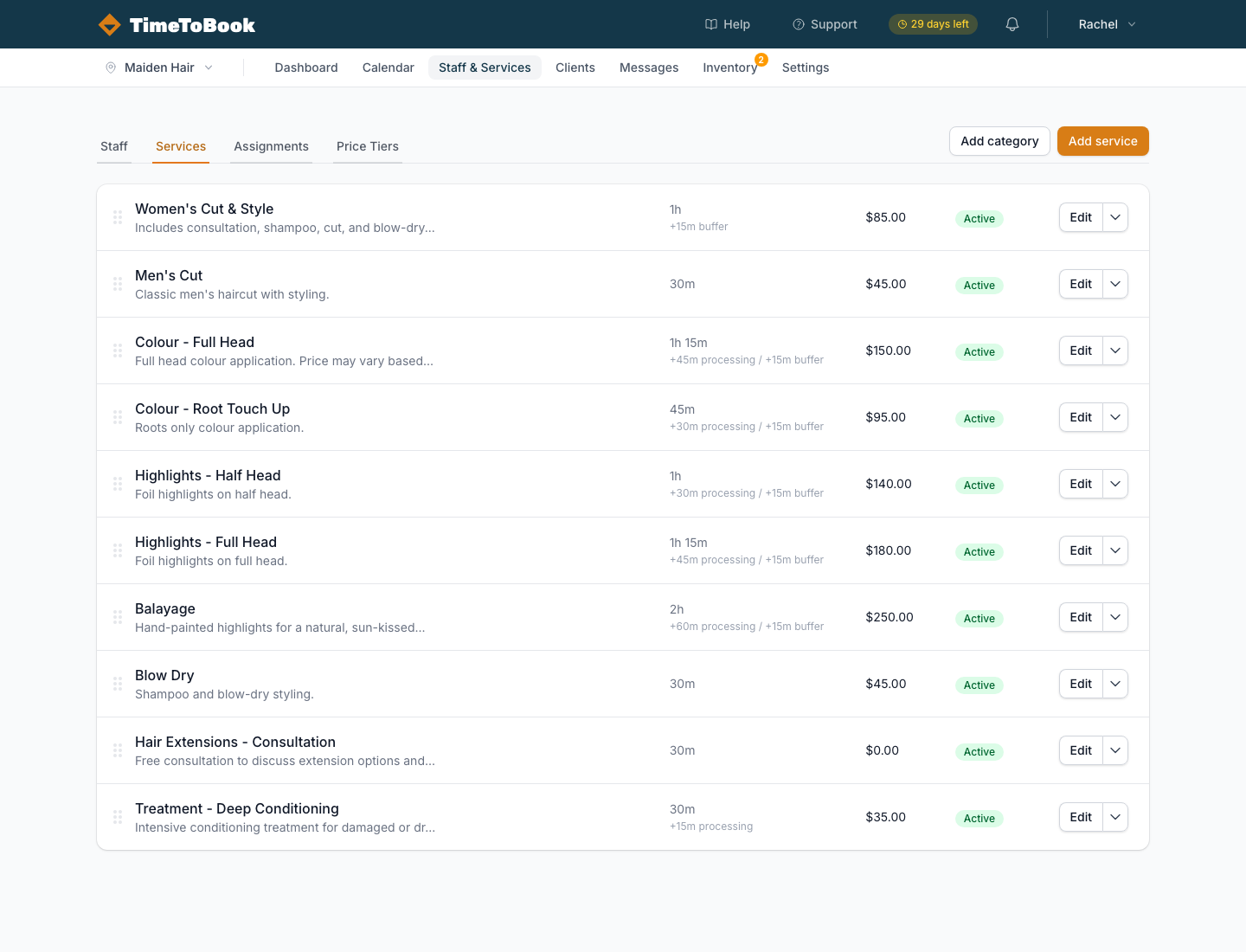
Head to Staff & Services in the sidebar on the left (on a phone, tap the menu icon at the top left first). There are four tabs: Staff, Services, Assignments, and Price Tiers.
Creating a service
Open the Services tab, then click Add service. Fill in:
- Name: what clients see, e.g. "Women's Cut & Blow Dry".
- Description (optional): a short line helps clients choose.
- Category: optional; groups the service on your booking page (see below).
- Price: the base price before any staff adjustments.
- Duration: how long the stylist is working on the client, in minutes.
- Processing: hands-off minutes after the duration (e.g. colour developing). The stylist is free to take another client during this time. Enter 0 if there's none.
- Buffer: minutes after the duration that the stylist is kept free, e.g. for cleanup. Enter 0 if there's none.
Processing and Buffer both need a number, so use 0 rather than leaving them blank. A small timeline under these fields shows how the time adds up.
How processing and buffer time work
Processing and buffer both start when the service duration ends. They run side by side rather than one after the other, so the total time set aside is the duration plus whichever is longer, processing or buffer.
For example, a 60 minute colour with 30 minutes processing and 10 minutes buffer takes up 90 minutes in total:
- The stylist works on the client for 60 minutes.
- For the next 30 minutes the client is processing. The first 10 minutes are also buffer, so the stylist is kept free for those. After that, another client can be booked in.
What clients see vs what you see
The duration a client sees on the booking page includes processing time (because they're still in the chair) but excludes buffer time (because that's your time, not theirs).
On the calendar, bookings show the full footprint: the service, then a striped processing strip and a lighter buffer block below it.
Services with a processing gap in the middle
Processing time always comes at the end of a service, so it can't sit in the middle. For a service that's "apply, process, then finish", such as a root touch-up with 30 minutes application, 45 minutes developing, then 15 minutes rinse and finish, set it up as separate services and book them together:
- A service for the application, e.g. "Root touch-up" with 30 minutes duration and 45 minutes processing.
- A service for the finish, e.g. "Rinse & finish" with 15 minutes duration.
Add both to one booking. The second service starts after the first one's processing time, and the stylist can take another client during the 45 minutes in between.
The same works for a colour and a cut: add both services to one booking, and the cut is scheduled after the colour's processing time.
Categories
Click Add category on the Services tab to create a category, such as "Cuts" or "Colour". Then choose a Category when you add or edit a service. Services without a category are listed under Uncategorised.
On a computer, you can drag services up and down to reorder them, or drag them from one category to another. You can also drag categories to reorder them. Use the menu on a category to Rename or Delete it. Deleting a category moves its services to Uncategorised.
On a phone the drag handles are hidden, so use the Category field on each service to move it.
Active vs inactive
Each service shows an Active or Inactive label. Click it to switch. Inactive services are hidden from the public booking page without being deleted. Use this for seasonal offerings or services you're phasing out.
Assignments: who can do what
On a team, not everyone does every service. The Assignments tab is a grid with services down the side and bookable staff across the top. Tick a box to say "Emma can do highlights"; untick it and clients won't be able to book that service with Emma.
New services are automatically assigned to all bookable staff, so you only need to touch this if you have specialists. See Service assignments for more.
Price Tiers
If a senior stylist charges more than a junior, that's a price tier. Under Price Tiers you can:
- Click Add tier and create a named tier (e.g. Senior, Director, Junior) that adjusts prices by a percentage or a fixed amount.
- Assign a tier to each staff member, from their Price Tier field or the dropdown on the Assignments tab.
On the public booking page, clients see each staff member's price when choosing who to book with. The Any available option shows the service's base price.
Booking times offered online
Clients are offered start times every 15 minutes (9:00, 9:15, 9:30 and so on), whatever the length of the service. This isn't adjustable. A time is only offered if the whole service, including processing and buffer time, fits within the staff member's working hours (and your business hours on days you're open), and doesn't overlap another booking or block.
Tips
- Keep service names short and recognisable. "Women's Cut" beats "Ladies Precision Cut & Wet Service".
- Use descriptions to explain what's included, not to upsell.
- If you're not sure about duration, round up. It's easier to finish early than to run late.
- For combinations (cut and colour), clients can pick more than one service when they book, so you don't need a duplicate "Cut & Colour" service. It keeps your service list tidy.
Still stuck?
Our support team is ready to help.