Your account
Profile details, your personal notification preferences, magic link and password sign-in, and deleting your account.
Your account sits above the locations you manage: one account can own or manage multiple locations. Open your account settings from the user menu in the top-right of the app (Profile, Notifications or Security).
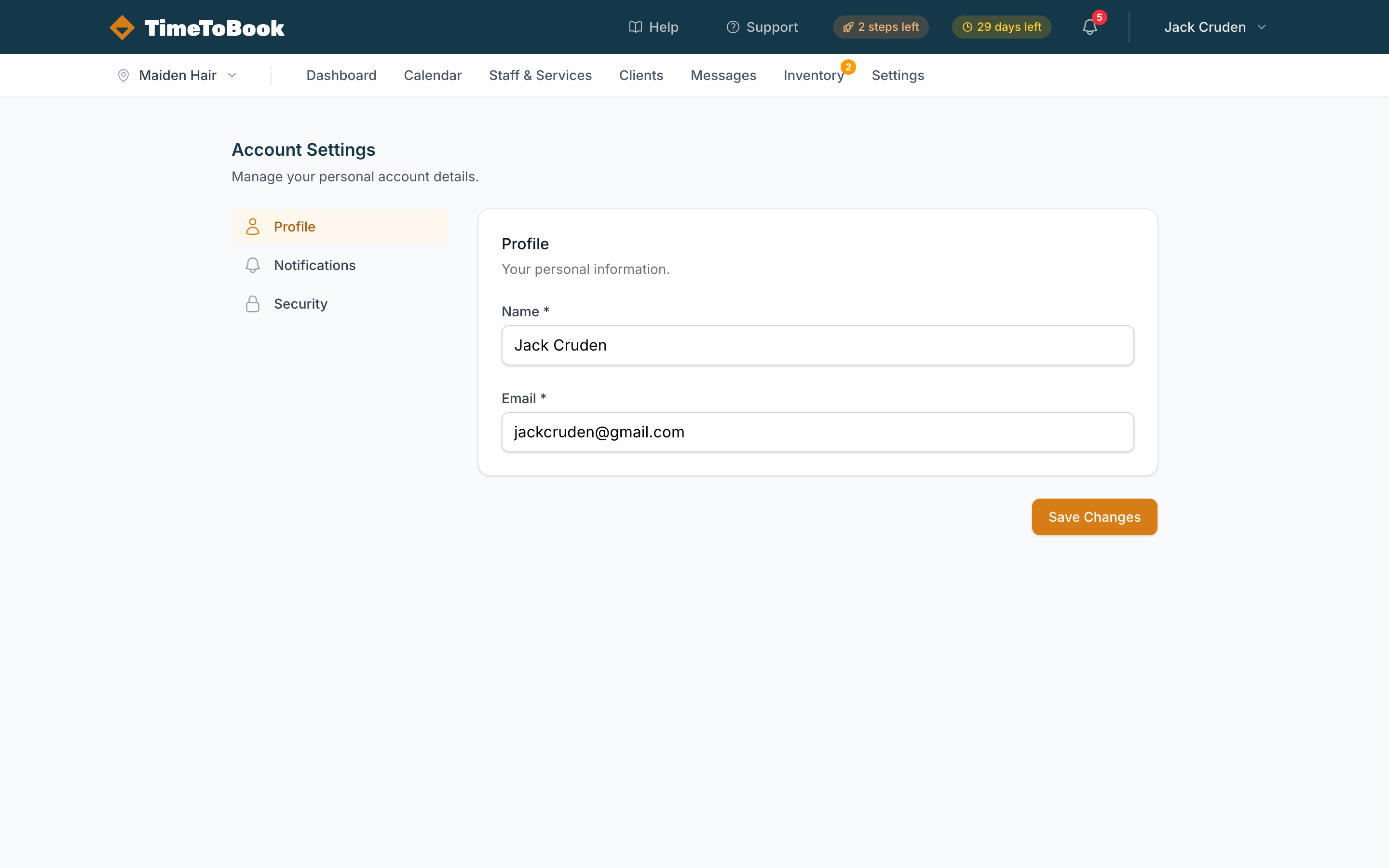
Profile
Your Name and Email. Your email is the address you sign in with and where your personal email notifications go.
Changing your email updates your login immediately. The next time you sign in, use the new address.
Notifications
These are your own alerts, separate for each person on the team. Each row has two boxes: Email (sent to the email on your profile) and App (a push notification in the TimeToBook mobile app).
- Booking Reminder: a heads-up shortly before each of your own appointments (15 minutes, 30 minutes, 1 hour or 2 hours before; 30 minutes by default). App is on by default, Email is off.
- Booking Cancelled: when a client cancels online. Sent to the location's owners and managers and the staff member the booking was with. App is on by default, Email is off.
- SMS Credits Exhausted: when your prepaid SMS credits run out. Sent to the business owner. App is on by default, Email is off.
- New Booking: when a client books on your booking page, or a booking is made through Tim, the location's owners and managers and the staff member it's with are told. Tick Email for an email (off by default) and App for a notification on the TimeToBook app (on by default). You won't be told about bookings you make yourself. There's also a separate email to your location's address: New Booking Alert in Settings → Notifications.
Click Save Preferences when you're done. There are no SMS alerts to you for any of these.
Cancellations and SMS credit alerts always appear in the bell too, whatever you tick here. Upcoming appointments appear in the bell unless both boxes are unticked.
Security
TimeToBook signs you in with a magic link by default, so you don't need a password:
- Enter your email on the login page.
- Check your email for a link.
- Click the link.
- You're in.
Links expire after 30 minutes.
If you'd rather use a password, set one under Account → Security. You can then choose to log in with your email and password on the login page. From the same place you can change your password, or click Remove password to go back to magic links only.
Notices
The Notices section of your account lists banners, nudges and tips you've dismissed. Click Restore next to any of them to see it again.
Multiple locations
If you own or manage more than one location, you'll see a location switcher at the top of the left sidebar. Click it to jump between locations. The switcher is grouped by business: each business owns one or more locations, and each location has its own calendar and settings. Staff and clients are shared across the locations in a business.
To add a new location to an existing business, open the switcher and click Add location. To start a brand new business (with its own billing), click New business at the bottom of the switcher. See Managing multiple locations.
Deleting your account
There's no delete button in the app. Email support or ask Tim to send the request for you, and we'll confirm, then delete your account, locations, and all related data. This is permanent and can't be undone. See Deleting your account.
Still stuck?
Our support team is ready to help.