Inventory tracking
Keep a simple count of salon stock (retail products, colour, back bar and consumables) with a reorder level that flags when you're running low.
The Inventory page is a simple stock list for anything you sell or use in the salon: retail products, colour tubes, shampoo, foils, whatever you like. It's optional, so use it if it helps and ignore it if it doesn't.
You'll find Inventory in the menu on the left. Each location has its own inventory list.
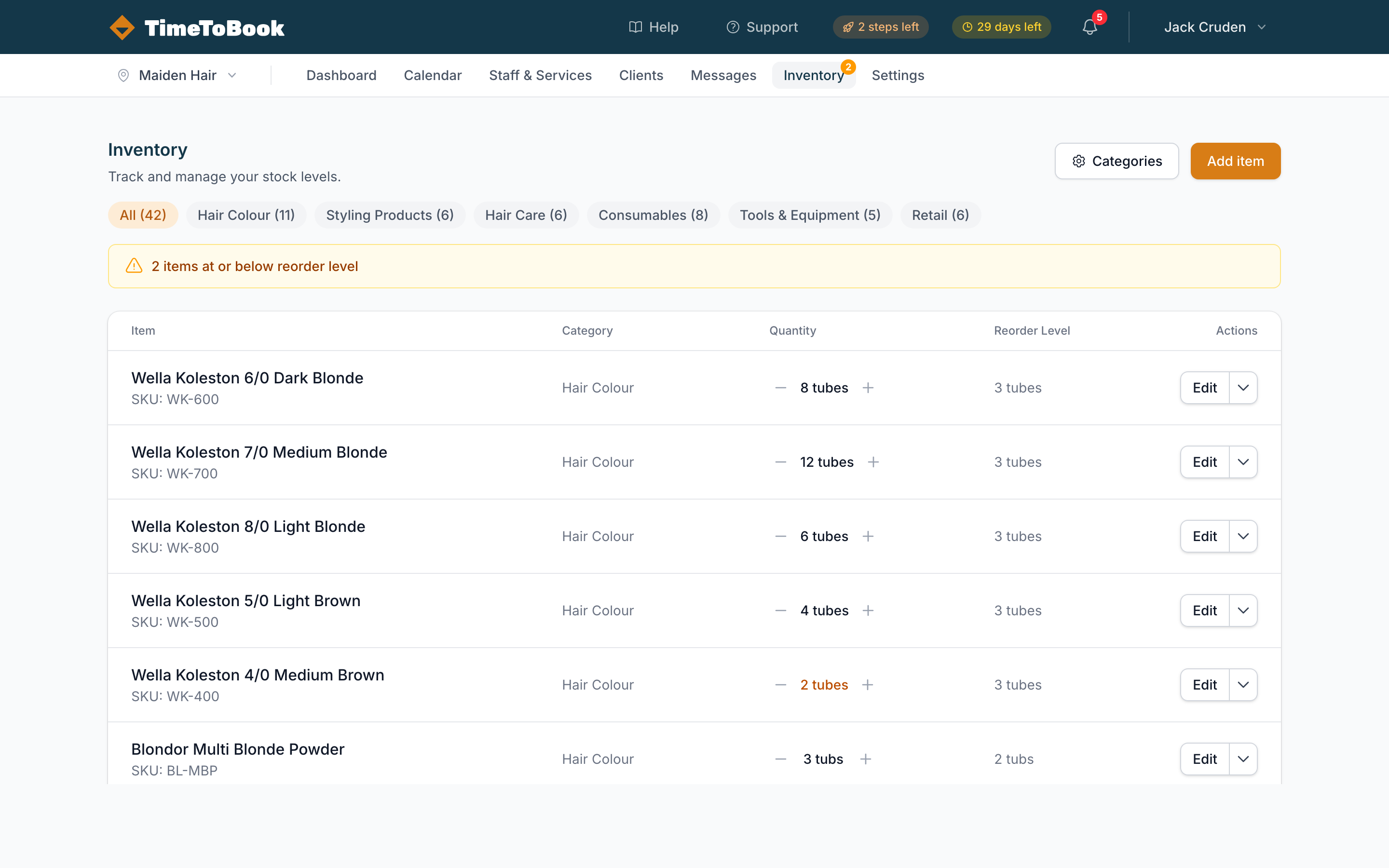
Categories
Categories help group your items. Typical examples:
- Retail: things you sell to clients.
- Colour: tubes, developers, bleach.
- Back bar: shampoos, conditioners, treatments.
- Consumables: foils, gloves, capes.
Click Categories at the top of the Inventory page to add, rename or delete them. Deleting a category doesn't delete its items: they just become uncategorised.
Once you have categories, they appear as filters above your list so you can show one category at a time.
Adding an item
Click Add item and fill in:
- Name: what you call it day to day.
- SKU (optional): a product code, if you use them.
- Category: pick one, or leave it as No category.
- Description (optional): anything else worth remembering, like the supplier.
- Quantity: how many you have right now.
- Unit: what you count in, like units, ml or g.
- Reorder level: optional. When the quantity drops to this number or below, the item is flagged as low.
- Cost price (optional): what you pay per unit.
To change any of these later, click Edit on the item. To remove an item, click the arrow next to Edit and choose Delete.
Updating stock
Use the minus and plus buttons next to an item's quantity to count stock down as you use or sell it, and up when a delivery arrives. For bigger changes, like after a stocktake, click Edit and type in the new Quantity.
TimeToBook doesn't keep a history of stock changes, and stock isn't reduced automatically when you complete a booking.
Low stock
When an item reaches its Reorder level:
- Its quantity shows in amber on the Inventory page.
- A notice at the top of the page shows how many items are at or below their reorder level.
- An amber badge with the count appears next to Inventory in the left-hand menu.
Items without a reorder level are never flagged.
Tips
- Start small. Track just your retail products for the first month, then add colour if you find it useful.
- Set realistic reorder levels. Aim for "enough to last until the next delivery", not "one left".
- Do a regular stocktake. Correct the counts every month or so, so small differences don't build up.
Still stuck?
Our support team is ready to help.