Managing clients
How the client list works, adding clients manually, client notes, and what gets captured automatically from online bookings.
Every booking, whether you make it or a client makes it online, is attached to a client in your Clients list. Over time this becomes your record of who your clients are, how to reach them, and when they last came in.
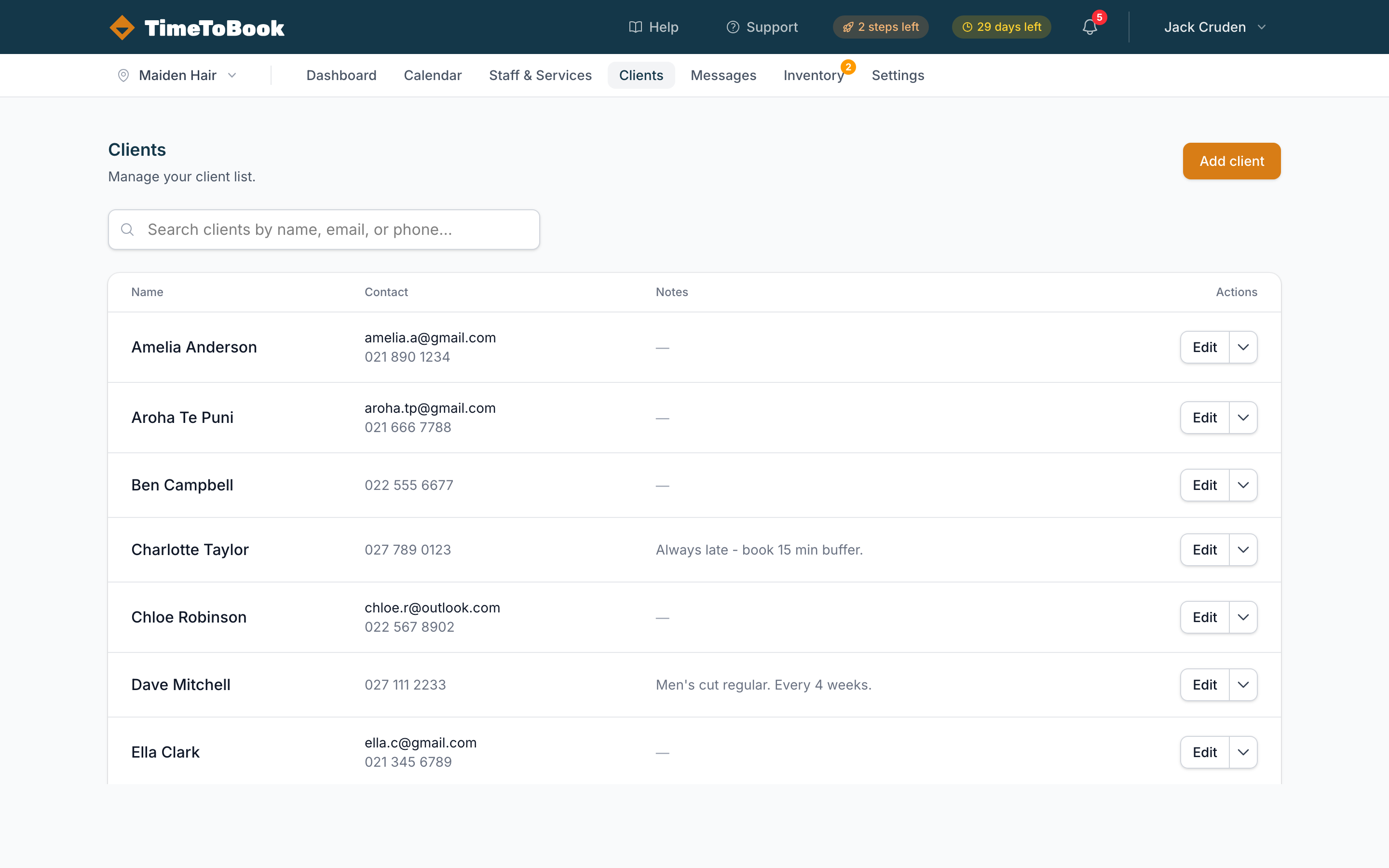
The list view
Open Clients from the menu on the left. You'll see your clients in alphabetical order with their name, contact details, general notes, and an Edit button.
- Use Search to filter by name, email or phone. Results update as you type.
- Use the Contact health filter to find clients whose email or phone has a problem, like a bounced email. See Contact health.
- Click a client's name to open their profile.
Adding a client manually
Click Add client (top right) and fill in:
- Name (required).
- Email (optional): used for booking confirmation and reminder emails.
- Phone (optional): used for text reminders.
- Address (optional) and Date of birth (optional).
- Notes (optional): general notes about the client, shown on the client list and their profile.
Automatic client creation
You don't need to add clients by hand for online bookings. When someone books through your booking page, TimeToBook:
- Looks for an existing client with the same phone number.
- If it finds one, attaches the booking to that client (and updates their name and email if they typed something different).
- If not, creates a new client.
Matching is by phone number only. If a regular books with a different number, they'll appear as a new client.
Client profiles
Click a client's name to open their profile. You'll see:
- Contact details: email, phone, address, date of birth and general notes. Click Edit details to change them.
- Account balance: any credit or amount owing for that client.
- Booking stats: total bookings, completed, no-shows and cancellations.
- Tabs for Upcoming, Past, Notes, Notifications and Account.
Notes
The Notes tab is a running list of notes about the client. Type in the box and click Add. Each note is saved with who wrote it and when. The same notes appear in the Notes tab when you open one of their bookings on the calendar.
If a client leaves a note when they book online, it's saved on that booking, not on their profile. Open the booking on the Calendar and look under Booking Notes in the Notes tab.
Reminders and notifications
- On the Upcoming tab, Send reminder sends the client their reminder for that booking straight away.
- The Notifications tab lists the emails and texts sent to the client and whether they were delivered. If the latest confirmation or reminder failed, a Resend button lets you try again (once).
You can't send a free-form text or email to a client from TimeToBook. Use your own phone or email for one-off messages.
Clients are shared across your business
Clients belong to your whole business, not to one location. If you have more than one location, they all share one client list, so a client who visits two of your locations has one profile with all their bookings.
Exporting clients
There's no way to export or download your client list from TimeToBook yet. It's a known request: let us know if you need it so we can gauge demand.
Tips
- Keep notes short and scannable. "Wants ash blonde, no warmth" beats a paragraph.
- Phone numbers matter. They're how online bookings find the right client, and how text reminders reach them.
- Duplicates. There's no merge tool. You can delete a client from the arrow next to Edit on the client list, but their bookings stay on the calendar without a client attached, so only delete a duplicate that has no bookings you need.
Still stuck?
Our support team is ready to help.